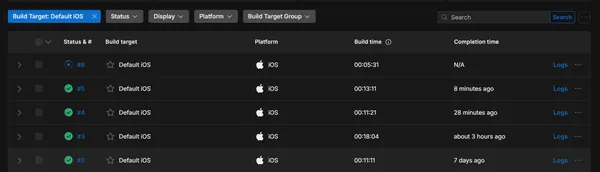
Creating and uploading iOS builds to App Store Connect can be a tedious process, especially when you don't have access to a Mac. This article will show you how to automate this process using Unity Cloud Build Automation.
Be aware that there is no free tier for Unity Cloud Build Automation on Mac builders, so you'll need to enter some credit card information. You'll be charged for the build minutes you use, and you can expect around 1€ per build for a small to medium project.
Prerequisites
Before we start, you'll need:
- A Unity Cloud Build account
- An Apple Developer account with App Store Connect access
- Your app already created on App Store Connect
Overview
The process is as follows:
- Create an API key to allow automated uploads
- Prepare the JSON API key for fastlane
- Configure Unity Cloud Build
- Set up version management
- Create the post-build script that handles the upload
- Put it all together
1. Setting up App Store Connect API Key
First, let's create an API key to allow automated uploads:
- Log in to App Store Connect
- In the top right corner, click on your name > Edit Profile > Personal API Keys
- Create a new key if you don't have one
- Note down:
- The Issuer ID (or developer identifier, visible at the top of the Keys page)
- The Key ID (generated with your key)
- Download the .p8 file
Keep these values safe as you'll need them for the configuration.
2. Preparing JSON API Key
To upload to App Store Connect, we will be using the fastlane API Key JSON file (see the fastlane documentation in case you need it).
We will create that JSON and configure it as an environment variable in Unity Cloud Build.
The JSON should look like this:
{
  "key_id": "D383SF739",
  "issuer_id": "6053b7fe-68a8-4acb-89be-165aa6465141",
  "key": "-----BEGIN PRIVATE KEY-----\nMIGTAgEAMBMGByqGSM49AgEGCCqGSM49AwEHBHknlhdlYdLu\n-----END PRIVATE KEY-----",
  "duration": 1200,
  "in_house": false
}
where key_id is the Key ID, issuer_id is the Issuer ID and key is the content of the .p8 file with line breaks replaced by \n.
3. Setting up Unity Cloud Build
Configure your build target in Unity Cloud:
-
In DevOps > Build automation > Configurations, create a new iOS target ("+ target setup"). Fill the configuration to match your project needs, for example:
- Target name: Default iOS
- Branch: main
- Project subfolder path: empty
- Versioning: Always Use Latest 6000.x
- Auto detect Unity version: On
- Build with closest version: On
- Builder Operating System and Version: macOS Ventura - Silicon
- Unity Editor architecture: Apple-Silicon
-
In Credentials:
- Configure the bundle identifier of your app. It can be found in App Store Connect > App Information > General > Bundle ID.
- Create a new Credential set:
- Name: any name that matches your project credentials
- Provisioning profile: you first need a certificate. If you don't have one yet, create it at https://developer.apple.com/account/resources/certificates/list with type "iOS Distribution". Then create a profile from https://developer.apple.com/account/resources/profiles/list with Distribution > Ad Hoc. Download the profile (.mobileprovision) and select it in the Unity Credential form.
- p12 file: this one is a bit tricky to get, and I couldn't find a way to get it without macOS. Be brave and follow the instructions from https://docs.unity.com/ugs/en-us/manual/devops/manual/build-automation/sign-build-artifacts/sign-an-ios-application. Note: you do need the "Certificate Signing Request" step from Keychain Access to have a private key associated with your certificate. Without this step, the "export p12" from the certificate will not work.
-
In Advanced Options > Script hooks, add:
- Post-build script: upload-to-appstore.sh
- Pre-Export method: AutoVersionInBuildAutomation.PreExport
We will create those scripts later.
-
In Advanced Options > Environment Variables, add this variable:
FASTLANE_JSON_API_KEY: copy-paste the JSON from the previous step
4. Version Management
Create a BuildVersion ScriptableObject to manage your versions:
[Serializable]
public class BuildVersion : ScriptableObject {
    public int Major;
    public int Minor;
    public int Patch;
    public string CommitHash = "";
    public int BuildNumber;

    public string ToMajorDotMinorDotPatch() {
        return $"{Major}.{Minor}.{Patch}";
    }

    /// Reads the version from the most recent "vX.Y" tag: the patch number is
    /// the number of commits since that tag.
    public static BuildVersion UpdateFromGit(BuildVersion buildVersion) {
        var version = Git.Run(@"describe --tags --long --match ""v[0-9]*""");
        version = version.Replace("-", ".");
        // Remove initial 'v'
        version = version.Substring(1);

        var strings = version.Split('.');
        buildVersion.Major = int.Parse(strings[0]);
        buildVersion.Minor = int.Parse(strings[1]);
        buildVersion.Patch = int.Parse(strings[2]);
        // Remove the "g" in front of the commit hash and strip line breaks
        buildVersion.CommitHash = Regex.Replace(strings[3].Substring(1), @"\t|\n|\r", "");
        buildVersion.BuildNumber = Git.GetTotalCommitCount();

        return buildVersion;
    }
}
UpdateFromGit relies on a small Git helper that runs the git command line and returns its output. Mine is adapted from a script written by Doug Cox at RedBlueGames (MIT License):
public class GitException : InvalidOperationException {
    public GitException(int exitCode, string errors) : base(errors) => ExitCode = exitCode;

    public readonly int ExitCode;
}

public static class Git {
    /// Runs git with the specified arguments and returns the output.
    public static string Run(string arguments) {
        var timeout = 10000;

        using (var process = new Process()) {
            process.StartInfo.FileName = "git";
            process.StartInfo.Arguments = arguments;
            process.StartInfo.CreateNoWindow = true;
            process.StartInfo.UseShellExecute = false;
            process.StartInfo.RedirectStandardOutput = true;
            process.StartInfo.RedirectStandardError = true;
            var output = new StringBuilder();
            var error = new StringBuilder();

            using (var outputWaitHandle = new AutoResetEvent(false))
            using (var errorWaitHandle = new AutoResetEvent(false)) {
                process.OutputDataReceived += (_, e) => {
                    if (e.Data == null) outputWaitHandle.Set();
                    else output.AppendLine(e.Data);
                };
                process.ErrorDataReceived += (_, e) => {
                    if (e.Data == null) errorWaitHandle.Set();
                    else error.AppendLine(e.Data);
                };

                process.Start();
                process.BeginOutputReadLine();
                process.BeginErrorReadLine();

                if (process.WaitForExit(timeout) &&
                    outputWaitHandle.WaitOne(timeout) &&
                    errorWaitHandle.WaitOne(timeout)) {
                    if (process.ExitCode == 0) return output.ToString();
                    throw new GitException(process.ExitCode, error.ToString());
                }

                process.CancelOutputRead();
                throw new GitException(1, "Timeout");
            }
        }
    }

    public static int GetTotalCommitCount() {
        return Int32.Parse(Run("rev-list --count HEAD"));
    }
}
Create an editor script to generate the BuildVersion asset and update it from the Unity menu:
public class EditorScripts : MonoBehaviour {
    [MenuItem("MyGame/Tools/Update BuildVersion Asset")]
    public static void UpdateBuildVersionAsset() {
        var buildConfig = GetOrCreateBuildVersion();
        BuildVersion.UpdateFromGit(buildConfig);
        EditorUtility.SetDirty(buildConfig);
        AssetDatabase.SaveAssets();
        AssetDatabase.Refresh();
    }

    public static BuildVersion GetOrCreateBuildVersion() {
        var buildConfig = AssetDatabase.LoadAssetAtPath<BuildVersion>("Assets/Resources/build-version.asset");

        if (buildConfig == null) {
            buildConfig = ScriptableObject.CreateInstance<BuildVersion>();
            AssetDatabase.CreateAsset(buildConfig, "Assets/Resources/build-version.asset");
        }

        return buildConfig;
    }
}
Finally, create the Pre-Export method referenced in the Cloud Build configuration. Unity Cloud Build calls it before building, so it's the right place to write the git version into the Player Settings. The same build number works for Android as well:
Assets/Editor/AutoVersionInBuildAutomation.cspublic static class AutoVersionInBuildAutomation {
public static void PreExport() {
var buildVersion = EditorScripts.GetOrCreateBuildVersion();
BuildVersion.UpdateFromGit(buildVersion);
PlayerSettings.Android.bundleVersionCode = buildVersion.BuildNumber;
PlayerSettings.iOS.buildNumber = buildVersion.BuildNumber.ToString();
PlayerSettings.bundleVersion = buildVersion.ToMajorDotMinorDotPatch();
Debug.Log($"Version updated: {PlayerSettings.bundleVersion} (build {buildVersion.BuildNumber})");
}
}
The version number comes from the last git tag and the commits since (e.g. 1.2.5 for the fifth commit after the v1.2 tag), and the build number is the total commit count, so each new commit produces a build number App Store Connect will accept.
5. Post-Build Upload Script
Create the post-build script upload-to-appstore.sh to handle the upload:
echo "Publishing to Apple Connect"

# Unity environment variables replace the "\n" signs from the private key with spaces for some reason,
# so we replace spaces with "\n" signs again so it works properly.
KEY_WITH_NEWLINES=$(echo "$FASTLANE_JSON_API_KEY" | jq '.key |= sub(" (?!PRIVATE|KEY)"; "\n"; "g")' -c -j)

echo "$KEY_WITH_NEWLINES" > api_key.json

# The force option skips a manual approval check you'd otherwise need to do
fastlane deliver --ipa "$UNITY_PLAYER_PATH" --api_key_path api_key.json --force
Credits: this script was found on the Unity forum. Thanks a lot Squeazer!
6. Putting It All Together
- Create your BuildVersion asset in a Resources folder using the new "MyGame/Tools/Update BuildVersion Asset" menu item.
- Set up a git tag with the format v1.0 for your first version.
- Beware: the patch number must not be specified (only "v", major, dot, minor). The patch number is the number of commits since the last tag.
- You don't have to tag every commit you want to release, only the ones worth a minor or major bump.
- Configure Unity Cloud Build with the environment variables.
- Add the post-build script to your repository.
- Configure the post-build script in Unity Cloud Build.
- Now when you push changes:
- Unity Cloud Build will create the iOS build
- The Pre-Export method will write the version from git into the Player Settings
- The build will be automatically uploaded to App Store Connect
Find me on social networks
If you found this article helpful, check my other articles and don't forget to follow me on your favorite network for more game development tips and discussions.